
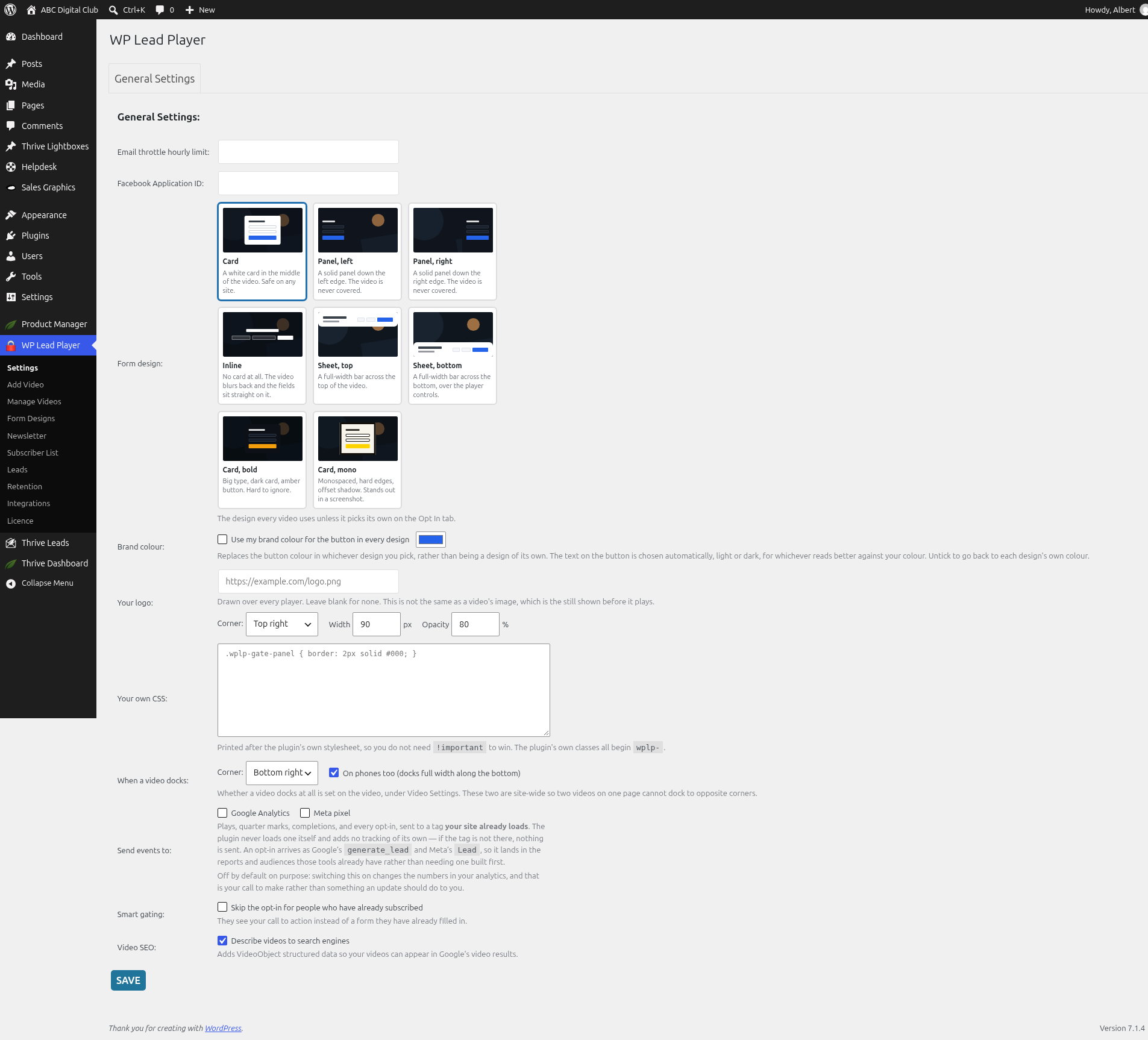
Two site-wide settings help WP Lead Player match your brand.
Brand colour
- Go to WP Lead Player › Settings.
- Under Brand colour, tick Use my brand colour for the button in every design.
- Pick your colour.
- Click SAVE.
This replaces the button colour in whichever design you pick, rather than being a design of its own. The button text is chosen automatically, light or dark, for whichever reads better against your colour. Untick it to go back to each design’s own colour.
Your own CSS
- Go to WP Lead Player › Settings.
- Type your styles into Your own CSS, for example:
.wplp-gate-panel { border: 2px solid #000; }
- Click SAVE.
Your CSS is printed after the plugin’s own stylesheet, so you don’t need !important to win. Most of the plugin’s own classes begin wplp-.
Classes you can style
| Class | What it is |
|---|---|
.wplp-player |
The wrapper round every player |
.wplp-gate |
The opt-in form panel |
.wplp-gate-panel |
The card inside it |
.wplp-optin-head, .wplp-optin-text |
The headline and text |
.wplp-fields |
The name and email fields |
.wplp-optin-actions, .wplp-optin-fineprint |
The button area and the small print |
.optin-submit-btn, .optin-skip-btn |
The sign-up button and the skip link |
.wplp-backdrop |
The tint over the video behind the form |
.wplp-veil |
The veil over the video |
.wplp-chapters |
The chapter strip |
.wplp-is-docked |
A player docked in the corner |
.wplp-layout-card, .wplp-layout-panel-left, .wplp-layout-panel-right, .wplp-layout-inline, .wplp-layout-sheet-top, .wplp-layout-sheet-bottom |
The layout of each design |
Still stuck? Open a ticket on the support page on ABC and a real person will help.
Was this article helpful?