
The Workflows extension runs actions automatically. Each rule has one trigger, optional conditions and one or more actions.
How a rule works
- When (the "Trigger"): "Ticket created", "Ticket status changed", "Ticket replied to" or "Ticket inactive for X hours". "Ticket replied to" fires on any reply, from an agent or a customer.
- If (the "Conditions"): "Department is", "Priority is", "Status is" and "Inactive for at least (hours)". All the conditions you set must match. Leave one on "Any" (or blank) and it is ignored. "Inactive for at least (hours)" is used only by the inactivity trigger, which does nothing if it is blank or 0.
- Then (the "Actions"): any combination of "Set status to", "Set priority to", "Assign to agent", "Add internal note" and "Send email notification". An email goes to the "Assigned agent", the "Customer" or "All administrators", with a message you write. In notes and emails you can use {ticket_id} and {ticket_title}.
There is no action for adding a tag.
Create a rule
- Go to Helpdesk > Workflows and click "Add New".
- Type a "Name".
- Choose the "Trigger".
- Under "Conditions (optional – leave unset to always match)", set any conditions.
- Under "Actions", choose what should happen. Each drop-down starts on "Don't change" or "Don't send".
- Keep "Enabled" ticked ("Active") and click "Save Workflow".
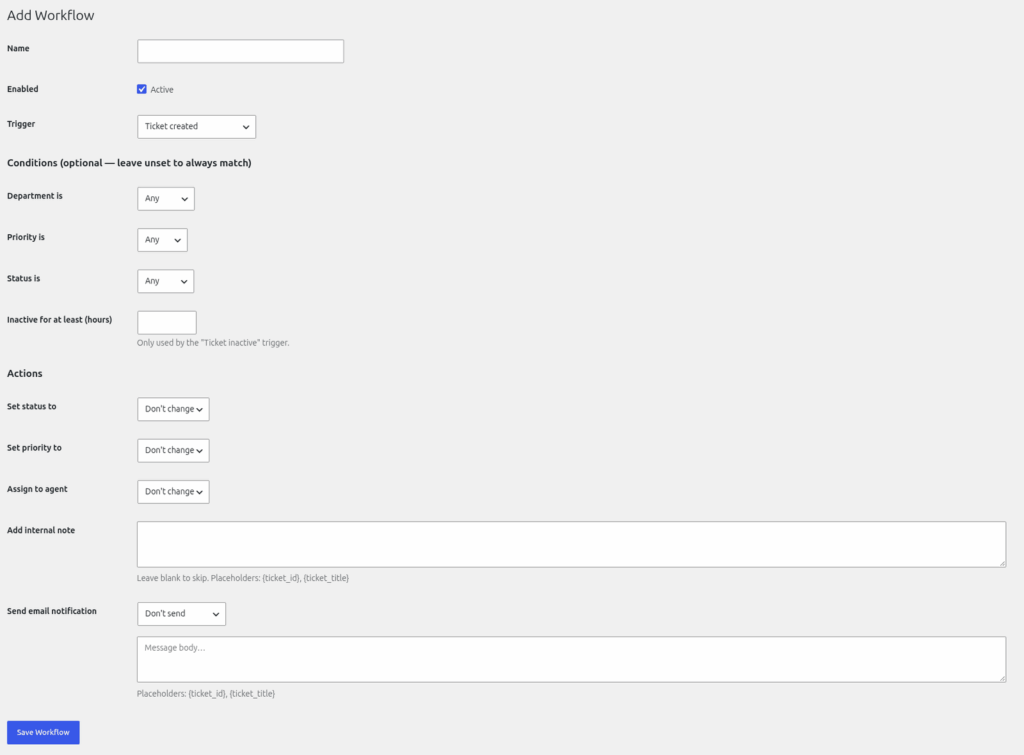
Example rules
- Escalate: trigger "Ticket created", condition "Department is" Billing, action "Set priority to" High.
- Chase: trigger "Ticket inactive for X hours", "Inactive for at least (hours)" 48, action "Add internal note" saying "No reply for 48 hours on {ticket_title}".
- Auto-close: trigger "Ticket inactive for X hours", condition "Status is" Resolved, action "Set status to" Closed.
Things to know
- A rule never starts another rule, so put all the actions you want in the same rule.
- Changes to status, priority and assignment are made as the "Automation user". Under "Automation user" you can choose who with "Make automatic changes as" (default "First administrator (default)"). That name shows in the ticket's activity log.
- The inactivity check runs once an hour on WP-Cron. It acts once per quiet spell on each ticket and handles up to 50 tickets per run.
Test a new rule on a dummy ticket before you rely on it.
Still stuck? Open a ticket on the support page on ABC and a real person will help.
Was this article helpful?