
The Email Piping extension checks a mailbox about every 5 minutes and turns new emails into tickets and replies.
Before you start
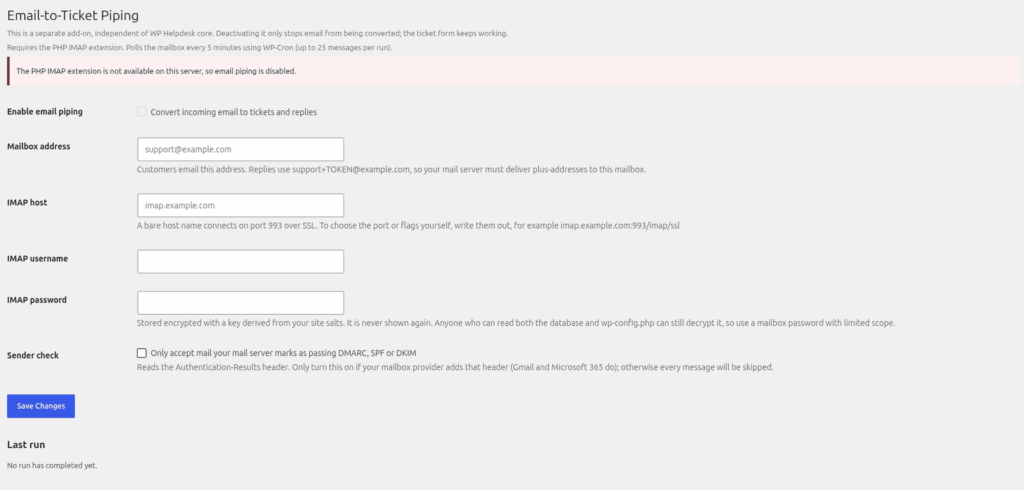
- Your server needs the PHP IMAP extension. Without it the settings page says "The PHP IMAP extension is not available on this server, so email piping is disabled." and the Enable box is greyed out. Ask your host to enable it.
- Use a dedicated mailbox, for example support@yourdomain.com.
- Your mail server must deliver plus-addresses (support+code@yourdomain.com to support@yourdomain.com). Gmail and Microsoft 365 do.
Set it up
- Go to Helpdesk > Email Piping (the page is headed "Email-to-Ticket Piping").
- Tick "Enable email piping".
- In "Mailbox address", type the support address your customers write to.
- In "IMAP host", type your provider's server name. A bare name connects on port 993 over SSL. For other ports or options, type them in the same box, for example imap.example.com:993/imap/ssl.
- Fill in "IMAP username" and "IMAP password". The password is stored encrypted.
- Optionally set "Sender check". It means "Only accept mail your mail server marks as passing DMARC, SPF or DKIM". It only works if your mail provider adds an Authentication-Results header; otherwise every message is skipped. Leave it off unless you know yours does.
- Click "Save Changes".
There is no test button. After a few minutes, look at "Last run" on the same page. It shows the time and a line like "3 new tickets, 1 replies, 0 skipped." After a failed connection it shows "Error: connect:" followed by the mail server's message. Until the first check you see "No run has completed yet."
How emails are handled
- A new email from an existing user becomes a new ticket with the status Pending.
- Emails from unknown senders are ignored. No account is created and nobody gets a bounce or reply. The email is counted as "skipped" in Last run and marked as read, so it is not tried again. A sender counts as known only if their From address exactly matches the email of a WordPress user. The email must also be addressed (To or Cc) to your mailbox address.
- A reply is added to a ticket only when it was sent to the ticket's special reply address (like support+TOKEN@yourdomain.com), which HelpDesk WP sets as the Reply-To on its ticket emails, and the sender is allowed to edit that ticket. A reply to an old email without that address creates a new Pending ticket instead.
- Auto-replies, bounces, mailing lists and the mailbox's own mail are skipped. Each message is handled once.
- Up to 5 attachments per email are saved, following the usual allowed file types and size limit. Skipped files are noted in the ticket text. Quoted text from earlier emails is trimmed.
Use a real cron job
Email Piping runs on WP-Cron, which only runs when someone visits your site, so "every 5 minutes" can slip on a quiet site. It checks up to 25 unread messages per run. For reliable timing, ask your host to run a real cron job:
- In wp-config.php, add define('DISABLE_WP_CRON', true);
- Have your host run wp cron event run –due-now every 5 minutes (every minute is also fine). If you cannot use WP-CLI, request https://yoursite/wp-cron.php?doing_wp_cron instead.
The same cron job keeps SLA checks, workflow inactivity checks, webhook deliveries and Paid Support reminders on time.
If it is not working, see "Troubleshooting: emails not arriving".
Still stuck? Open a ticket on the support page on ABC and a real person will help.
Was this article helpful?