
The SLA extension sets how quickly tickets should get a first reply and be solved.
Set targets
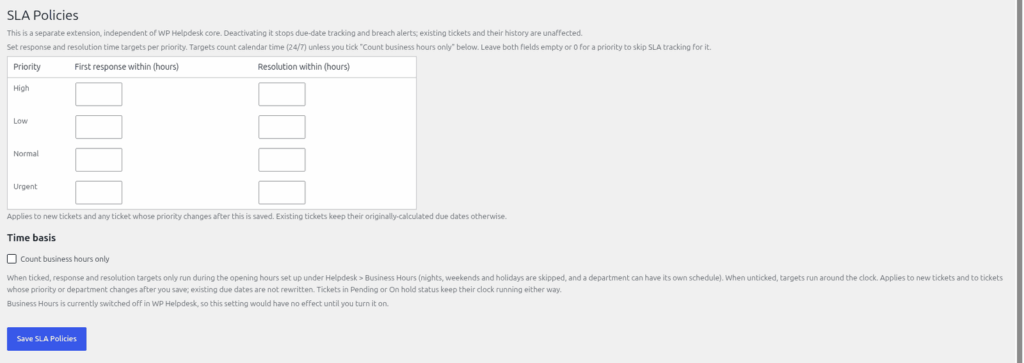
- Go to Helpdesk > SLA Policies.
- There is one row for each priority. Enter "First response within (hours)" and "Resolution within (hours)". You can use half hours, up to 8760 hours. Leave a box empty or 0 to skip that target for that priority.
- Under "Time basis", tick "Count business hours only" if the clock should run only during your opening hours. It is off by default, which means targets run around the clock. This uses the hours set under Helpdesk > Business Hours, including holidays and any department schedule, so Business Hours must be switched on. If it is off, calendar time is used and the screen tells you so.
- Click "Save SLA Policies".
Targets are by priority only. There is no separate table of targets for each department.
When due dates are set
A ticket gets its due times when it is created. If you change a ticket's priority later, the due times are recalculated, and so are they if you change its department while business hours are on. Changing the policy does not rewrite due dates that already exist. The clock keeps running while a ticket is Pending or On hold.
Seeing SLA status
The list under Helpdesk > All Tickets has an "SLA" column. It shows a word:
- On track: no target has been missed.
- Met: the first reply and the resolution are both recorded in time.
- Breached (in red): a target was missed.
- A dash: the ticket has no SLA policy.
It does not show time left.
Breach alerts
Alerts are sent after a breach. There is no warning before a ticket is about to breach.
- Once an hour, the SLA extension looks for tickets whose due time has passed with nothing recorded.
- It adds a line to the ticket's Activity list ("SLA response target breached." or "SLA resolution target breached.").
- It emails the assigned agent. If the ticket is unassigned, it emails every administrator. The subject reads "[SLA BREACH] Ticket #N: response overdue" or "…: resolution overdue".
Each ticket gets one alert for each target type. Because the check uses WP-Cron, a real server cron makes it more reliable. See "Email Piping: tickets by email" for how to set one up.
The Reports extension shows an SLA Compliance figure. See "Reading the Reports extension".
Still stuck? Open a ticket on the support page on ABC and a real person will help.
Was this article helpful?