
The CSAT extension emails a customer a rating request when their ticket is solved. Customers give 1 to 5 stars and an optional comment of up to 2,000 characters.
Set it up
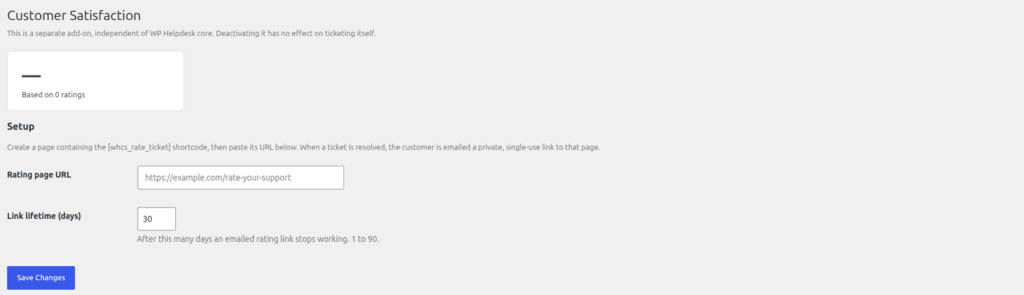
Nothing is sent until you have a rating page.
- Create a new page, for example "Rate your support", and add the shortcode .
This rating link is invalid or has expired.
- Publish it and copy its web address.
- Go to Helpdesk > CSAT (the page is headed "Customer Satisfaction").
- Paste the address into "Rating page URL".
- Set "Link lifetime (days)" from 1 to 90. The default is 30.
- Save.
What happens
- The first time a ticket becomes Resolved or Closed, the customer gets an email with a link to your rating page.
- The link works until the customer sends a rating, or until it expires. Once a rating is saved, the link stops working.
- A logged-in customer who owns the ticket can also rate without the link.
- If a ticket is reopened, its rating is cleared, so the next time it is solved a fresh request is sent.
Seeing the results
The CSAT page shows the average score as "N / 5, based on N ratings". The ticket list under Helpdesk > All Tickets has a "CSAT" column showing the stars for each rated ticket.
Ratings are included in WordPress's Export and Erase Personal Data tools. See "GDPR: exporting and erasing personal data".
Still stuck? Open a ticket on the support page on ABC and a real person will help.
Was this article helpful?