
Searching
- In Helpdesk > All Tickets, use the "Search Tickets" box. It searches the ticket subject and message text only. It does not search the customer's name or email, or the text of replies.
- On the Agent Dashboard, the "Search tickets…" box searches subject and message in the same way. The filter bar (Saved Views) also has a "Customer (name or email)" filter. See "Filters and saved views (personal and shared)".
- Customers can search their own tickets in My Tickets.
Dashboard lists show at most 50 tickets and hide Closed, Resolved and Merged tickets unless you search.
Exporting to CSV
- Go to Helpdesk > All Tickets.
- Click "Export CSV", next to the filter controls.
- Open the file (tickets-YYYY-MM-DD.csv) in Excel, Numbers or Google Sheets.
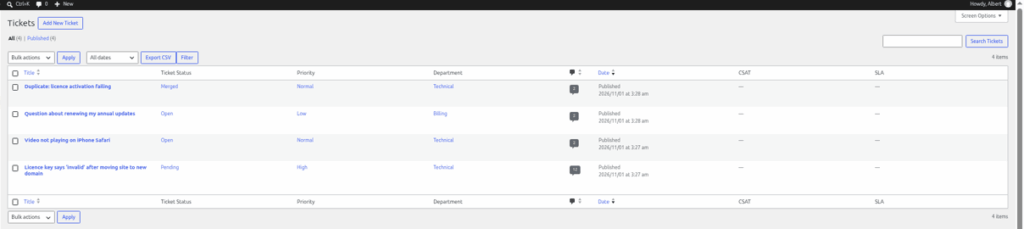
What the export contains
Filters and search do not change the export. It always includes every ticket you are allowed to see, in all statuses except Bin. Agents with "View all tickets" get every ticket; other agents get only their assigned tickets.
| Column | Contents |
|---|---|
| ID | The ticket number |
| Subject | The ticket subject |
| Status | The current status |
| Priority | The priority |
| Department | The department |
| Assigned To | The agent's name |
| Customer | The customer's display name (not their email) |
| Created | When the ticket was created |
To work on just some tickets, open the file and filter it in your spreadsheet.
Still stuck? Open a ticket on the support page on ABC and a real person will help.
Was this article helpful?