
Knowing what your customers see helps you answer questions and write good help pages. They see this on the page holding
Please log in to use the support desk. Log in
, or on the page holdingPlease log in to use the support desk. Log in
, which shows customers a welcome message, the ticket form and their tickets.The ticket form
Customers fill in Subject, Department and Priority (Normal is preselected), then "Describe the issue", and can add one attachment. Forms built with the Forms module can change these fields and add custom fields. What they type is autosaved in their browser, and if a saved draft comes back they see "A previous unsaved draft was restored." with a "Discard draft" button.
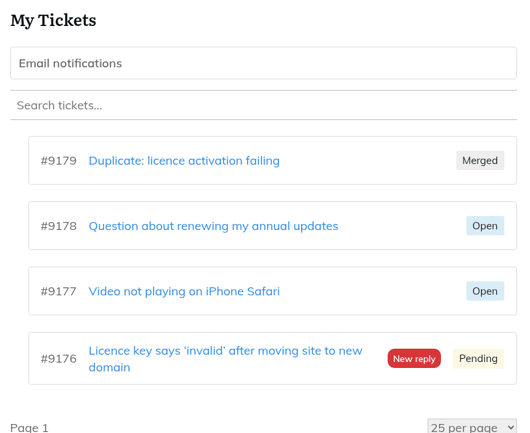
The My Tickets list
- Each row shows the ticket number, the subject and a coloured status.
- A "New reply" badge marks a ticket where your team has replied since the customer last opened it.
- The "Search tickets…" box searches their own tickets by subject and message.
- Customers only ever see their own tickets.
Opening a ticket
Clicking a row opens the ticket on the same page. The customer sees the conversation oldest first and a reply box with a "Reply" button and one optional attachment.
- A reply on a Resolved or Closed ticket reopens it as Open.
- A merged ticket shows "This ticket was merged into ticket #N." and has no reply form.
- Customers cannot change the priority after submitting.
What stays hidden
Customers never see internal notes, the Activity list, the ticket controls (status, department, assignee, merge), time tracking, or AI tools. Those are agent-only.
Optional extras
These appear only if you switched on the matching module or extension.
- An "Email notifications" box where customers choose which emails they get. See "Choosing which emails you receive".
- A print button for their own tickets. See "Printing a ticket".
- An optional "Private credentials" box for sharing logins securely. See "Sharing login details securely on a ticket".
- A notice on the ticket form when your team is closed. See "Business hours, holidays and the out-of-hours notice".
- A satisfaction rating page. See "Collecting satisfaction ratings with CSAT".
Still stuck? Open a ticket on the support page on ABC and a real person will help.
Was this article helpful?