
WP Lead Player can play video from your own files, from a streaming service, from YouTube or from Vimeo. You choose the source for each video under Video Sources on the Video Settings tab.
The three source options
Go to WP Lead Player › Add Video (or open a video from WP Lead Player › Manage Videos). On the Video Settings tab, under Video Sources, pick one of:
- File or stream URL – your own video file or a streaming link.
- Vimeo Video – a video hosted on Vimeo.
- YouTube Video – a video hosted on YouTube.
Whichever you pick, the link goes in the Video Url box below.
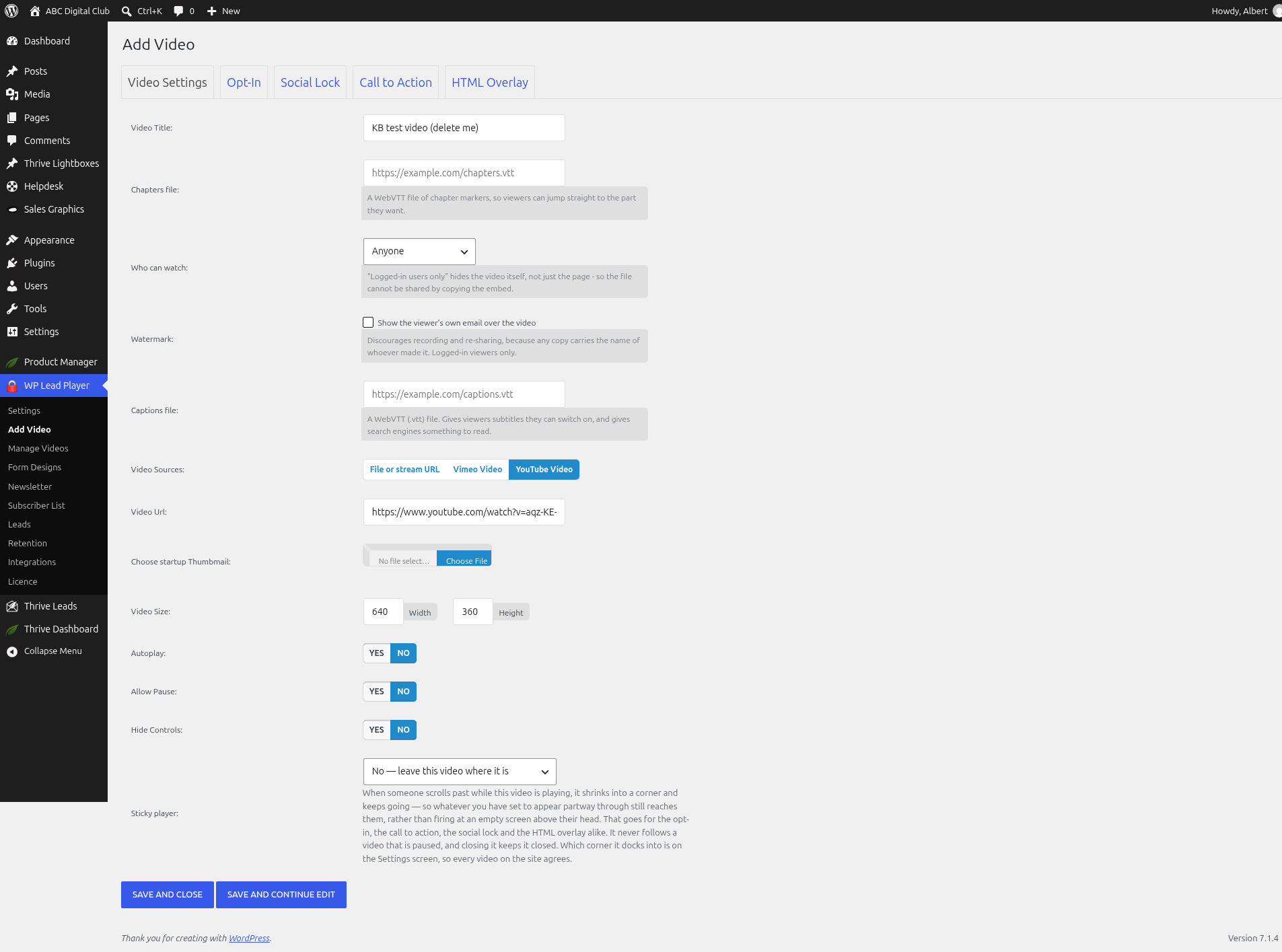
File or stream URL
Use this for your own files and for streaming services. As the help text on screen says, you can:
- Upload an MP4 or WebM file, or paste a URL to one.
- Paste an .m3u8 stream URL from Bunny Stream, Cloudflare Stream or a similar service. It’s detected automatically, so there’s no separate option to pick.
Using Bunny Stream or Cloudflare Stream
- In your streaming service, find the video’s HLS playback URL – it ends in .m3u8 – and copy it. The exact wording in Bunny’s and Cloudflare’s dashboards changes from time to time, so check their own help pages if you can’t spot it.
- In WP Lead Player, choose File or stream URL.
- Paste the link into Video Url.
- Fill in Video Size (Width and Height) and save.
YouTube Video
- Choose YouTube Video.
- Paste the YouTube video’s address into Video Url.
Four address shapes are accepted:
youtube.com/watch?v=IDyoutu.be/IDyoutube.com/embed/IDyoutube.com/v/ID
Anything after the video ID stops it working. That includes youtu.be/ID?t=5, which is the link YouTube gives you when you copy with Start at ticked, and watch?v=ID&t=30s. Shorts, youtube.com/live/ links and youtube-nocookie.com addresses aren’t supported. The safest way: copy the address from your browser’s address bar and delete everything from the ? onwards (keeping watch?v=ID itself for a watch link), or use a youtu.be/ID link with nothing after the ID.
Vimeo Video
- Choose Vimeo Video.
- Paste the Vimeo video’s address into Video Url.
Standard and unlisted links work, as long as the video’s privacy settings in Vimeo allow embedding on your site. If a video is restricted to specific domains, add your site’s domain in Vimeo. Password-protected Vimeo videos won’t play through the player. Privacy is set in Vimeo, not in WP Lead Player.
Which should I choose?
- Uploaded files keep everything on your own site, but large files can slow your hosting.
- Streams (Bunny, Cloudflare) are good for long or popular videos, because the streaming service does the heavy lifting.
- YouTube and Vimeo are free and easy, but the video also lives on their platform.
How features differ by source
| Feature | File or stream URL | YouTube and Vimeo |
|---|---|---|
| Viewer watermark, captions and chapter strip | Yes | Yes – drawn by the plugin over the player |
| Who can watch | Yes, and the video address is hidden from logged-out visitors | Yes, but the video still exists publicly at its own YouTube or Vimeo address |
| Retention tracking | Tracked directly | Tracked through YouTube’s or Vimeo’s own player, so it isn’t recorded if a viewer blocks their scripts |
| Adaptive streams (.m3u8) | Yes | No |
Good to know
- Every video needs a Width and Height under Video Size before it will save. They’re in pixels and work as a maximum size plus a shape: the player never grows wider than the width you give, and on narrower screens it shrinks to fit while keeping the proportions of your two numbers. Enter the largest it should ever be – you don’t need separate mobile settings.
- You can change the source at any time; your overlays and settings stay as they are.
Still stuck? Open a ticket on the support page on ABC and a real person will help.
Was this article helpful?