
Live search
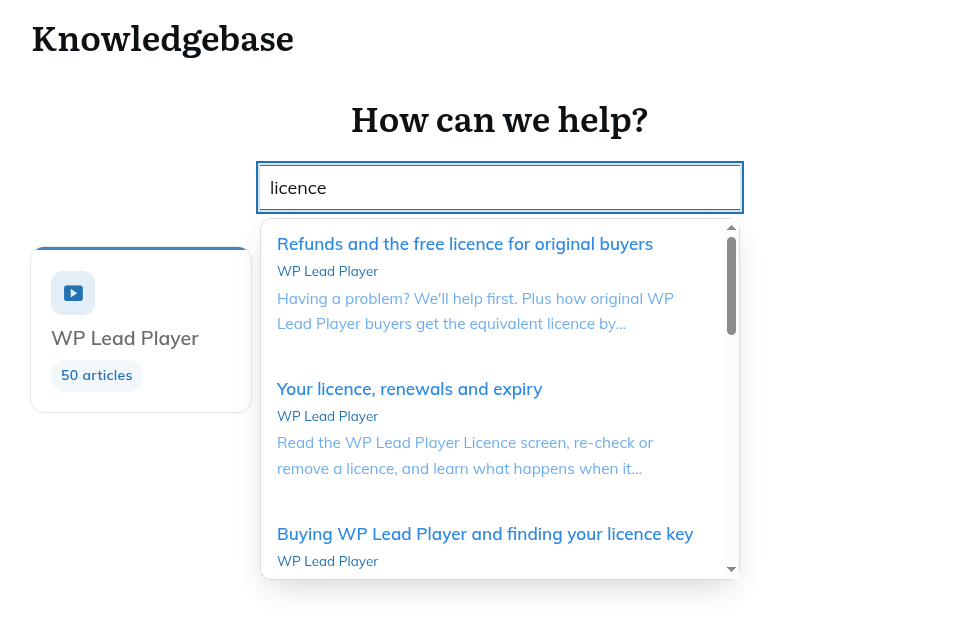
Results appear as visitors type in the "Search articles…" box on the knowledge base page, with no page reload.
- Searching starts after two characters.
- It shows up to 8 published articles.
- It finds words in the article and also matches KB tags.
- If nothing matches, the visitor sees "No articles found."
Good titles, a clear excerpt and a few tags make articles easier to find. See "Writing articles: categories, icons, tags, featured images and block styles".
Was this article helpful?
Each article ends with "Was this article helpful?" and Yes and No buttons. Visitors do not need to log in. After a vote they see "Thanks for the feedback!", and the buttons are hidden for that article in that browser.
Seeing the results
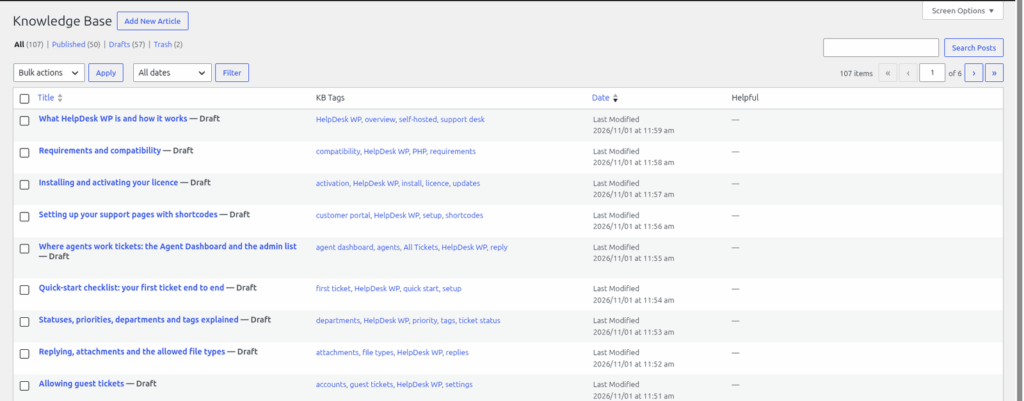
Go to Helpdesk > Knowledge Base. The "Helpful" column shows each article's votes as "Yes N / No N". Look for articles with many No votes, and improve those first.
Related articles
Under each article, HelpDesk WP shows up to 3 other published articles under the heading "Related articles". An article is included if it shares the article's first category or shares at least one KB tag with it. They are shown newest first, with no ranking by relevance. Adding tags is the easiest way to link articles across categories.
KB and the AI assistant
If you use the AI assistant, the "Draft from KB" button uses your published articles to write a draft reply. A good knowledge base means better drafts. See "Using AI: summarise, draft, improve, suggest, similar tickets".
Still stuck? Open a ticket on the support page on ABC and a real person will help.
Was this article helpful?