
Add a field
- Go to Helpdesk > Ticket Fields.
- Click "Add field" and pick a "Type".
- Give it a label, and optionally a placeholder, help text and "Required". Number fields take a minimum and maximum. Text fields take a maximum length.
- Click "Save field".
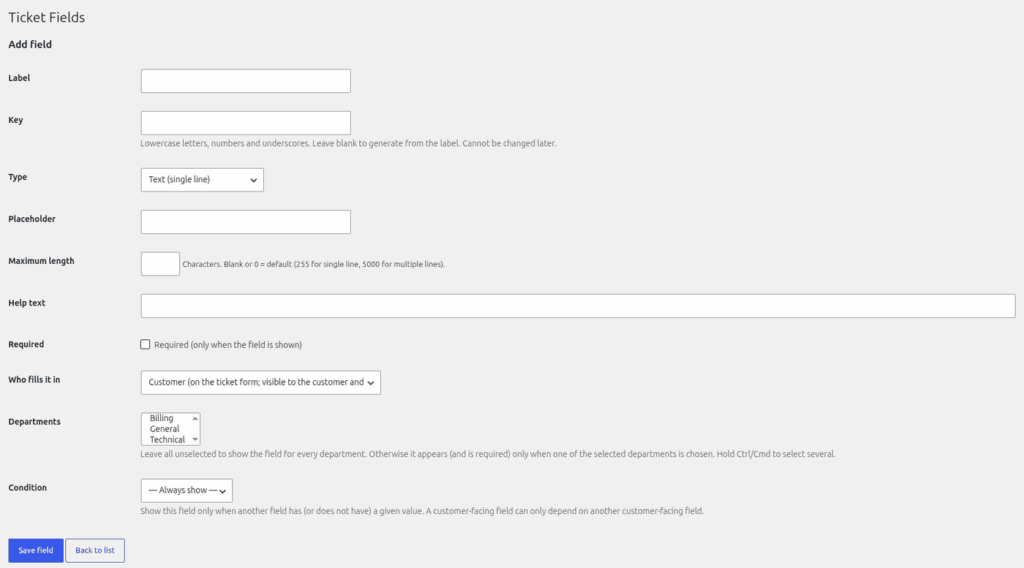
Field types
There are 10 types:
- Text (single line)
- Text (multiple lines)
- Number
- Email address
- URL
- Date
- Drop-down
- Radio buttons
- Checkbox (single yes/no)
- Checkbox group (multiple)
Drop-down, Radio buttons and Checkbox group take a list of choices, one per line. Each field can have up to 100 choices of up to 200 characters, and you can have up to 50 fields. Text length defaults to 255 characters for a single line and 5000 for multiple lines, and can be raised to 20,000.
Conditional fields
Show a field only when another field has a certain answer. For example, show "Order number" only when "Topic" is "Billing". A condition compares one other field using "is" or "is not". For a choice field the value must be one of its options. HelpDesk WP stops conditions looping back on themselves ("That condition would create a loop between fields."). A customer-facing field cannot depend on an agent-only field.
Agent-only fields
Set "Who fills it in" to "Agents only (hidden from customers everywhere; agents edit it on the ticket)". Agents see the field in the "Ticket Fields" box on the ticket. Only agents with the "Change ticket status / priority / department / assignment" permission can edit values there.
Department fields
Use the "Departments" setting to limit a field to one or more departments. Leave all unselected to show it for every department. A field is only required when its department is selected.
Where field values appear
- On the ticket screen, in the "Ticket Fields" box.
- On printed tickets.
- In the REST API, as "custom_fields" on a ticket. Customers never get agent-only fields.
- In the personal data export, for tickets the person wrote. Agent-only values are left out of the export by default.
- The erase tool deletes all custom field values, agent-only ones included, from the person's tickets.
Field changes are recorded on the activity timeline.
Still stuck? Open a ticket on the support page on ABC and a real person will help.
Was this article helpful?