
The AI assistant is optional and off until an administrator turns it on. It is for agents only: customers never see it or use it.
Providers
- OpenAI
- Anthropic
- Google Gemini
- OpenAI-compatible services, such as OpenRouter, xAI, Ollama and LM Studio
You use your own API key and pay your provider directly for what you use. HelpDesk WP does not charge for AI requests.
Turn it on
The AI assistant has its own page. It is not part of Helpdesk > Settings.
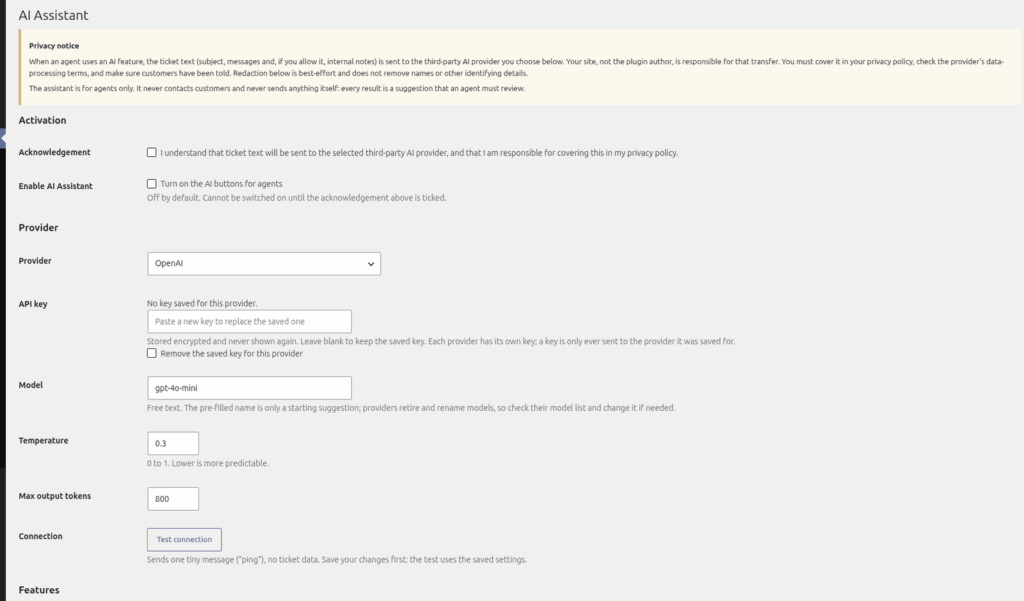
- Go to Helpdesk > AI Assistant. The page has sections called Activation, Provider, Features, Privacy controls, Limits and Usage.
- In "Activation", tick the acknowledgement. It explains that ticket text is sent to the provider you choose. "Enable AI Assistant" cannot be switched on until you have ticked it.
- Tick "Enable AI Assistant" ("Turn on the AI buttons for agents").
- In "Provider", choose OpenAI, Anthropic, Google Gemini or "OpenAI-compatible endpoint (OpenRouter, xAI, Ollama, LM Studio, …)".
- Paste your key into "API key". Each provider keeps its own key. For the OpenAI-compatible option the key is optional, because some local services do not need one.
- Check the "Model" box. It is pre-filled for the three main providers (gpt-4o-mini, claude-haiku-4-5 and gemini-2.5-flash) and you can type a different model name. The compatible option has no default, so type the model name yourself.
- For the compatible option only, fill in "Base URL" (for example https://openrouter.ai/api/v1). It must start with https:// unless it points at your own machine or private network.
- Optionally change "Temperature" (default 0.3) and "Max output tokens" (default 800).
- Click "Save changes", then click "Test connection". The test only sends the word "ping" and no ticket data. It uses the settings you last saved, so save first.
How your key is stored
Keys are stored encrypted when your server supports it (PHP OpenSSL with AES-256-GCM). If the server does not, the key is only scrambled, not encrypted, and the page shows a red warning. If you see that warning, ask your host to enable OpenSSL.
Switching features off
The "Features" section lets you switch each AI button on or off separately. See "Using AI: summarise, draft, improve, suggest, similar tickets".
Never share your API key in a ticket or screenshot.
Still stuck? Open a ticket on the support page on ABC and a real person will help.
Was this article helpful?