
Organisations group customers from the same company.
Set one up
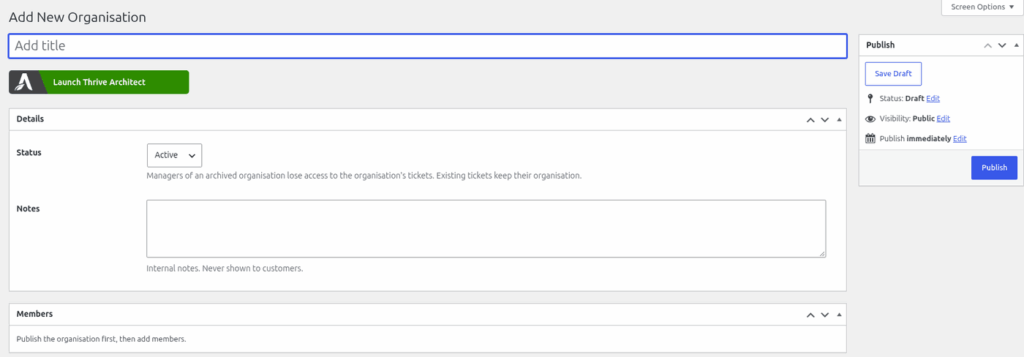
- Go to Helpdesk > Organisations and click "Add New".
- Give the organisation a name and click "Publish". The Members box only appears after the organisation is published.
- In the Members box, click "Add member", enter a username or email, and choose Member or Manager.
- Click "Update".
You can also set a person's organisation on their user profile, under "Helpdesk organisation".
A person belongs to one organisation only. Adding them to another moves them.
Members and managers
| Role | Can do |
|---|---|
| Member | See their own tickets. |
| Manager | Read and reply to every ticket created by people in their organisation. They switch between the "My tickets" and "Organisation tickets" buttons in the portal. |
Notifying managers
On the Organisations page there is a setting, "Notify managers of new tickets from their organisation". It is off by default. When ticked, managers are added as watchers on new tickets from their organisation automatically.
Good to know
- A ticket keeps the organisation it was opened under, even if the person moves.
- Agents see an "Organisation:" line on the ticket, and the organisation's notes are internal.
- You can set an organisation's status to Archived when you stop working with it. Managers of an archived organisation lose access to its tickets. The tickets keep their organisation.
- On the Agent Dashboard, an "Organisation" drop-down appears in the filters once at least one organisation exists. You can save it in a view. See "Filters and saved views (personal and shared)".
Still stuck? Open a ticket on the support page on ABC and a real person will help.
Was this article helpful?