
Auto-assignment
By default, new tickets go to the least busy agent for the ticket's department.
- "Least busy" counts each agent's tickets that are Open, Pending or On Hold.
- Administrators are in the pool.
- A ticket is never assigned to the person who created it.
- If nobody covers the department, it goes to the least busy agent overall.
To switch it off, go to Helpdesk > Settings, find the "Ticket Assignment" section and untick "Auto-assign new tickets". It is on by default.
Departments covered
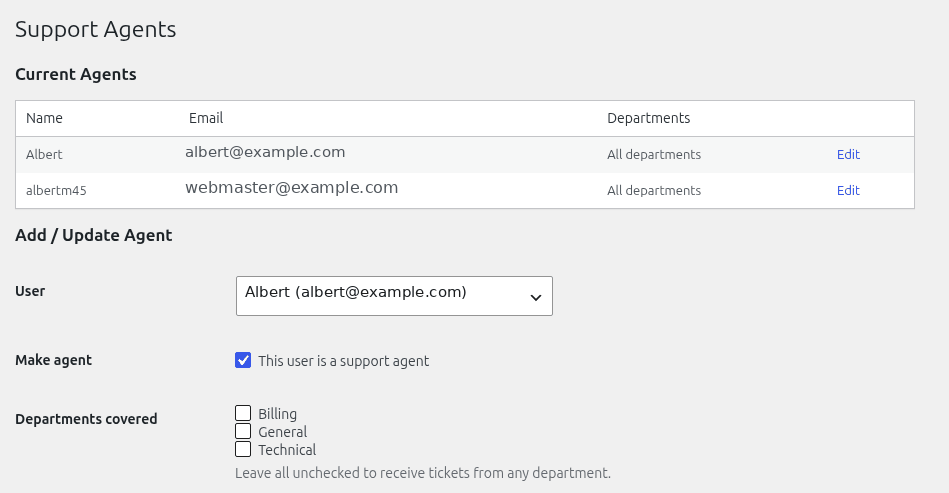
Open Helpdesk > Agents, click "Edit" next to an agent, and use the "Departments covered" box to tick the departments they handle.
An agent with no departments ticked is only used when nobody covers the ticket's department. The screen's hint says "Leave all unchecked to receive tickets from any department", but in practice an agent with nothing ticked is a fallback. If you want someone to receive a department's tickets first, tick it for them.
Agent teams
Teams group agents, for example a Billing team.
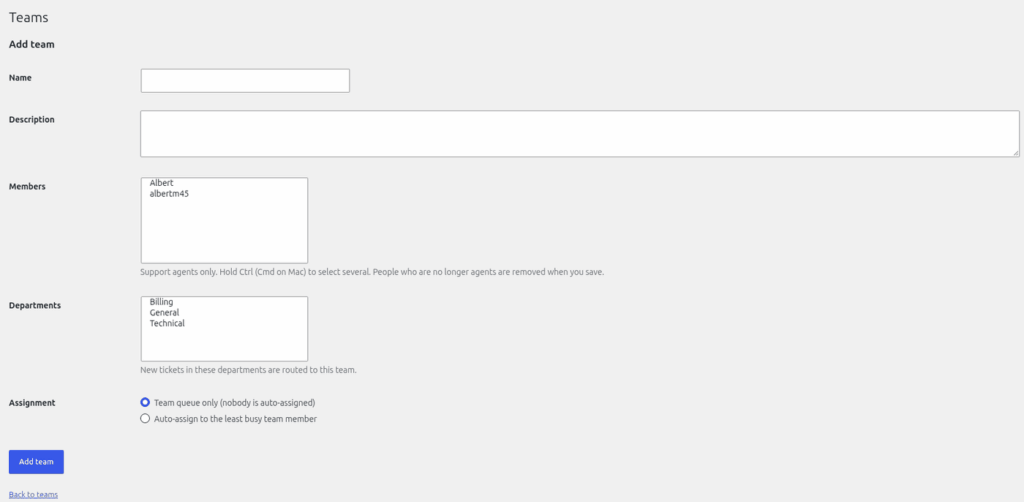
- Go to Helpdesk > Teams and click "Add New".
- Give the team a name.
- Choose its members. Only Support Agents and administrators can be members.
- Tick the departments that belong to the team.
- Under Assignment, choose "Team queue only (nobody is auto-assigned)" or "Auto-assign to the least busy team member".
- Click "Add team".
How a ticket gets into a team
- Automatically, when the ticket is created and its department is ticked on a team. If a department is on several teams, the team higher in the Teams list wins. Use "Move up" and "Move down" to change the order.
- By hand. An agent with the "Change ticket status / priority / department / assignment" permission picks a team in the "Team" drop-down on the ticket, or "- None -" to remove it.
A "Team queue only" team also stops site-wide auto-assignment from giving that ticket to someone outside the team.
Team tab and emails
Team members see the team's tickets in the "My teams" tab on the Agent Dashboard. Team emails are only sent if you tick "Email team members when a ticket is routed to their team" on the Teams page. It is off by default. The person who made the change and the assigned agent are not emailed.
If you delete a team, its tickets are left with no team.
Still stuck? Open a ticket on the support page on ABC and a real person will help.
Was this article helpful?