
When a customer opens the same issue twice, merge the tickets so there is one conversation.
Steps
- Open the duplicate ticket on the Agent Dashboard.
- In the ticket controls above the conversation, type the number of the main ticket in "Merge this ticket into #:".
- Click "Merge".
- Your browser asks "Merge this ticket into #N? This cannot be undone." Confirm.
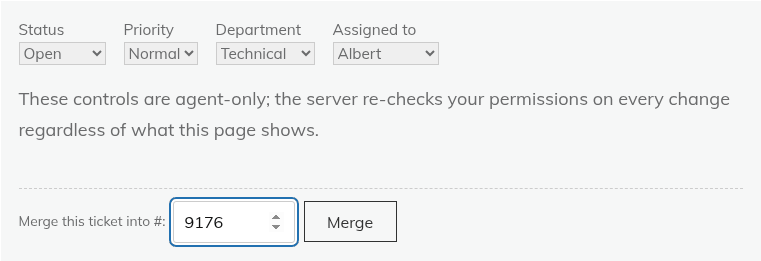
Only agents with the "Change ticket status / priority / department / assignment" permission see the merge box.
What happens
- Replies and internal notes are moved, not copied, from the duplicate to the main ticket. Watchers of the duplicate are added to the main ticket.
- The duplicate stays, with the status Merged and a banner "This ticket was merged into ticket #N." Its reply form is hidden, and its own original message stays on the duplicate.
- The main ticket gets a system note and an Activity entry saying which ticket was merged in. The duplicate itself is not given an entry.
- Automatic status changes do not apply to the merged ticket.
A merge cannot be undone
There is no un-merge, so check the number before you confirm. If a customer needs a separate conversation again, create a new ticket for them. See "Creating a ticket on behalf of a customer".
Still stuck? Open a ticket on the support page on ABC and a real person will help.
Was this article helpful?