
Work through this list once and you will know the whole desk works. You will need a support page with
Please log in to use the support desk. Log in
and a page withPlease log in to use the support desk. Log in
. See "Setting up your support pages with shortcodes".1. Check your departments
Go to Helpdesk > Departments. You will find General, Billing and Technical already there. Rename or add to them to suit you.
2. Add an agent
Go to Helpdesk > Agents and make a team member a Support Agent. You can be the agent for this test. See "Adding Support Agents and the seven permissions".
3. Test your email
- Go to Helpdesk > Settings. There are no tabs, so scroll to the "Email Notifications" section.
- Set your "From name" and "From address", then click "Save Email Settings".
- In the "Email health check" part just below, click "Run email check" and fix anything flagged.
- Click "Send test email to" followed by your address, and check it arrives.
4. Submit a test ticket
A visitor who is not logged in only sees "Please log in to use the support desk." unless guest tickets are on. Use one of these:
- Log in as a test customer (a user with the Subscriber role) in a private browser window.
- Or turn on guest tickets first. See "Allowing guest tickets".
- Go to your Support page.
- Fill in the form with a test subject and message, and click "Submit Ticket".
- Check that the confirmation email arrives.
5. Answer it
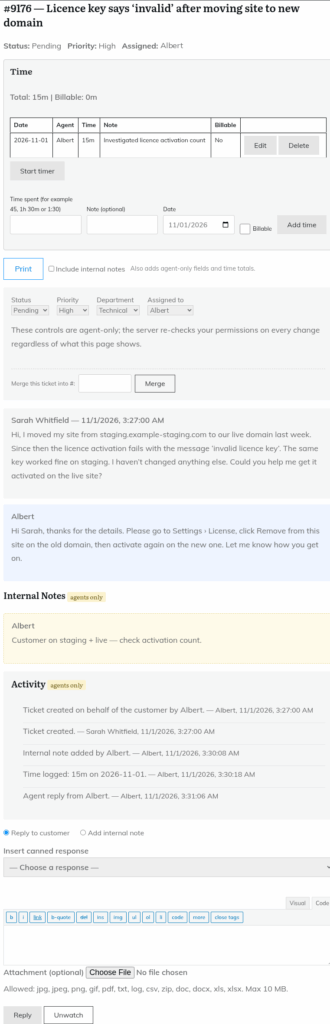
- Log in as the agent and open your Agent Dashboard page.
- Click the test ticket to open it.
- Type a reply and click "Reply". The status changes to Pending.
- Check the customer email arrives. It contains the reply text but no link, so open the site as the customer, go to My Tickets and reply there. The status goes back to Open.
6. Close it
On the ticket, set Status to Resolved or Closed.
Next steps
- Set your business hours.
- Add canned responses for common questions.
- Start your knowledge base.
Still stuck? Open a ticket on the support page on ABC and a real person will help.
Was this article helpful?