
Turn it on and set your weekly hours
Business hours are off by default. While they are off, HelpDesk WP treats you as open 24 hours a day.
- Go to Helpdesk > Business Hours.
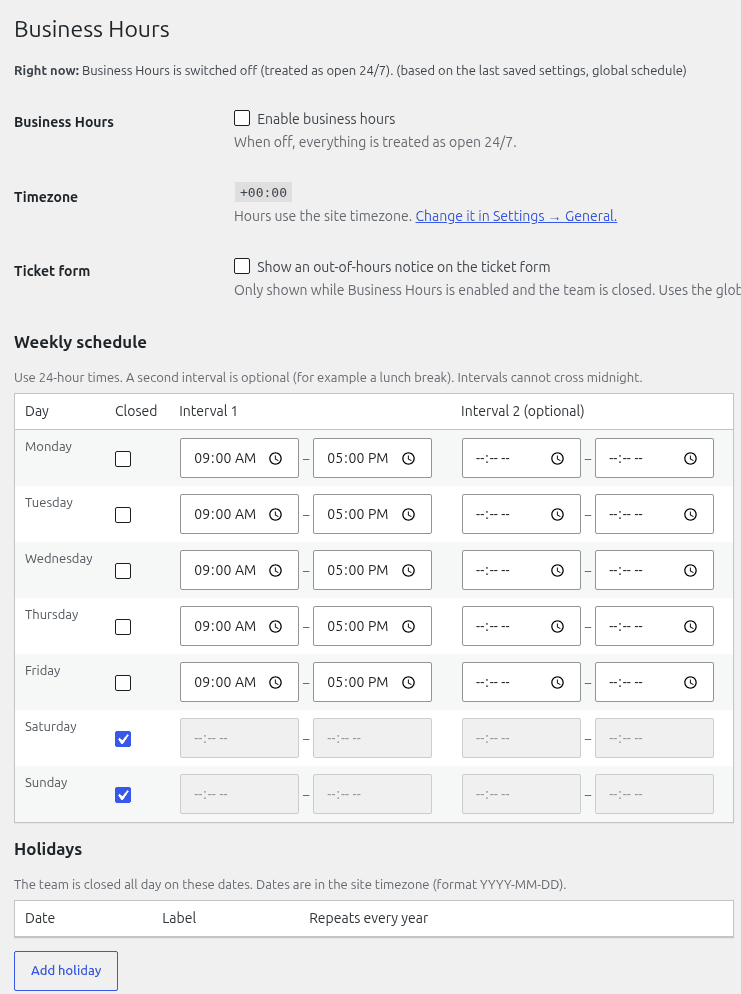
- Tick "Enable business hours". The schedule starts as Monday to Friday, 09:00 to 17:00.
- For each day, set opening and closing times in 24-hour format.
- For split hours, use "Interval 1" and "Interval 2 (optional)", for example 09:00-12:30 and 13:30-17:00. A day can have two intervals. An interval cannot run past midnight.
- Click "Save Business Hours".
Times use your WordPress timezone (Settings > General), and clock changes are handled for you.
Holidays
Add the dates you are closed in the holiday table, which has the columns "Date", "Label" and "Repeats every year".
- Click "Add holiday" to add a row.
- Choose the date and type a label.
- Tick "Yes" in the "Repeats every year" column for fixed holidays such as Christmas Day.
You can add up to 200.
Per-department schedules
A department can have its own weekly hours. Untick "Use the global schedule" for that department and set its times. Global holidays still apply to every department.
Out-of-hours notice
Tick "Show an out-of-hours notice on the ticket form". It is off by default. When business hours are enabled and you are closed, the form shows: "Our team is currently closed. We'll reply from DATE AND TIME." If no next opening can be found it says only "Our team is currently closed."
The wording is fixed and cannot be edited here. The notice uses the global schedule only, not department schedules.
To show your hours on a page, see "Showing your opening hours with ".
Still stuck? Open a ticket on the support page on ABC and a real person will help.
Was this article helpful?