
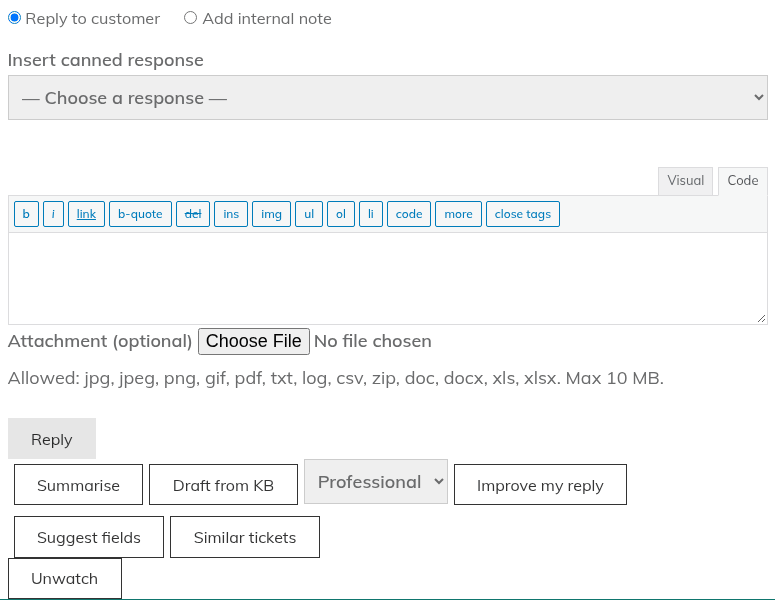
Once the AI assistant is on (see "Turning on the AI assistant and choosing a provider"), agents see AI buttons on the ticket screen. Open a ticket on the Agent Dashboard page. The buttons sit in the row under the reply box, next to "Reply" and before "Watch".
| Button | What it does |
|---|---|
| Summarise | Writes a short summary of the conversation. |
| Draft from KB | Drafts a reply using your published knowledge base articles. |
| Improve my reply | Tidies the wording of the reply you have typed. Pick a tone first: Professional, Friendly, Concise or Empathetic. |
| Suggest fields | Suggests a department, priority and tags. |
| Similar tickets | Finds other tickets with similar titles. It does not call your AI provider and does not count towards your usage limits. |
Where the results appear
Results appear in a panel headed "AI-generated – review before sending". Nothing goes into your reply box until you choose to put it there:
- "Copy" copies the text.
- "Insert into reply" adds it to your reply box.
- "Replace my draft" (Improve only) swaps your text for the improved version.
- "Apply department / priority" (Suggest only) sets those two fields. You need the "Change ticket status / priority / department / assignment" permission to do this. Suggested tags are shown for you to read; they are not applied for you.
Good to know
- The AI never sends anything by itself. An agent always checks the result and clicks "Reply".
- "Draft from KB" only uses published knowledge base articles that match the ticket (up to four). If none match, no draft is made and you see "No relevant knowledge-base articles were found". The articles it used are listed with the draft, so a good knowledge base means better drafts.
- Any agent who can open the ticket can use the buttons. Customers cannot.
- Each use adds a line to the ticket's Activity list, so you can see when AI was used. See "Reading the activity timeline".
- An administrator can switch each button off under Helpdesk > AI Assistant > Features.
See "AI privacy masking and usage limits" for what is sent to your provider.
Still stuck? Open a ticket on the support page on ABC and a real person will help.
Was this article helpful?