
HelpDesk WP builds the customer side of your desk with shortcodes. The plugin does not create pages for you and has no page settings, so you create the pages yourself and add the shortcodes.
The shortcodes
| Shortcode | What it shows | Suggested page |
|---|---|---|
Please log in to use the support desk. Log in | The new-ticket form. Add form="slug" to show a particular form. | Support |
Please log in to use the support desk. Log in | The logged-in customer's tickets, with a "New reply" badge and search. Clicking a ticket opens it on the same page. | My tickets |
Please log in to use the support desk. Log in | For agents, the "Agent Dashboard". For customers, a welcome message, the ticket form and "My Tickets". | Support, or Agent dashboard |
Please log in to use the support desk. Log in | A single ticket. It reads ?ticket_id=N from the address, or you can set id="N". You rarely need a page of its own. | (usually none) |
How can we help? | The knowledge base home with live search. Add category="slug" to show one category. | Knowledge base |
| Your opening hours (needs Business Hours). Add department="12", the number of the department, for one department. | Support or Contact | |
Please log in to manage your email notifications. | A person's email preferences (needs the Email notifications module). | My account |
Helpdesk > Settings has a "Shortcodes" section at the bottom that lists the first five.
Create the pages
- Go to Pages > Add New Page.
- Give it a title, for example Support.
- Add a Shortcode block (or your builder's shortcode element) and paste
Please log in to use the support desk. Log in
. - Publish.
- Repeat for the other pages.
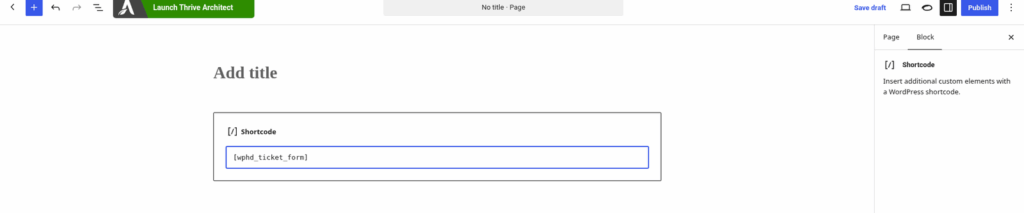
A simple set-up
The quickest set-up is one page with
Please log in to use the support desk. Log in
. Agents who visit it see the Agent Dashboard. Customers who visit it see a welcome message, the ticket form and their own tickets. Agents work tickets on this page. See "Where agents work tickets: the Agent Dashboard and the admin list".Things to know
- Emails do not contain links to your pages. Customers get to their tickets by visiting your site, so add My tickets (or your Support page) to your menu.
- Ticket links on these pages simply reopen the same page with ?ticket_id=N added.
- A visitor who is not logged in sees "Please log in to use the support desk." unless guest tickets are on. See "Allowing guest tickets".
- Tickets are never public. Customers only see their own.
- The knowledge base address comes from the slug of the page that holds . See "Changing your knowledge base web address (/kb/ or /knowledge-base/)".
How can we help?
Still stuck? Open a ticket on the support page on ABC and a real person will help.
Was this article helpful?