
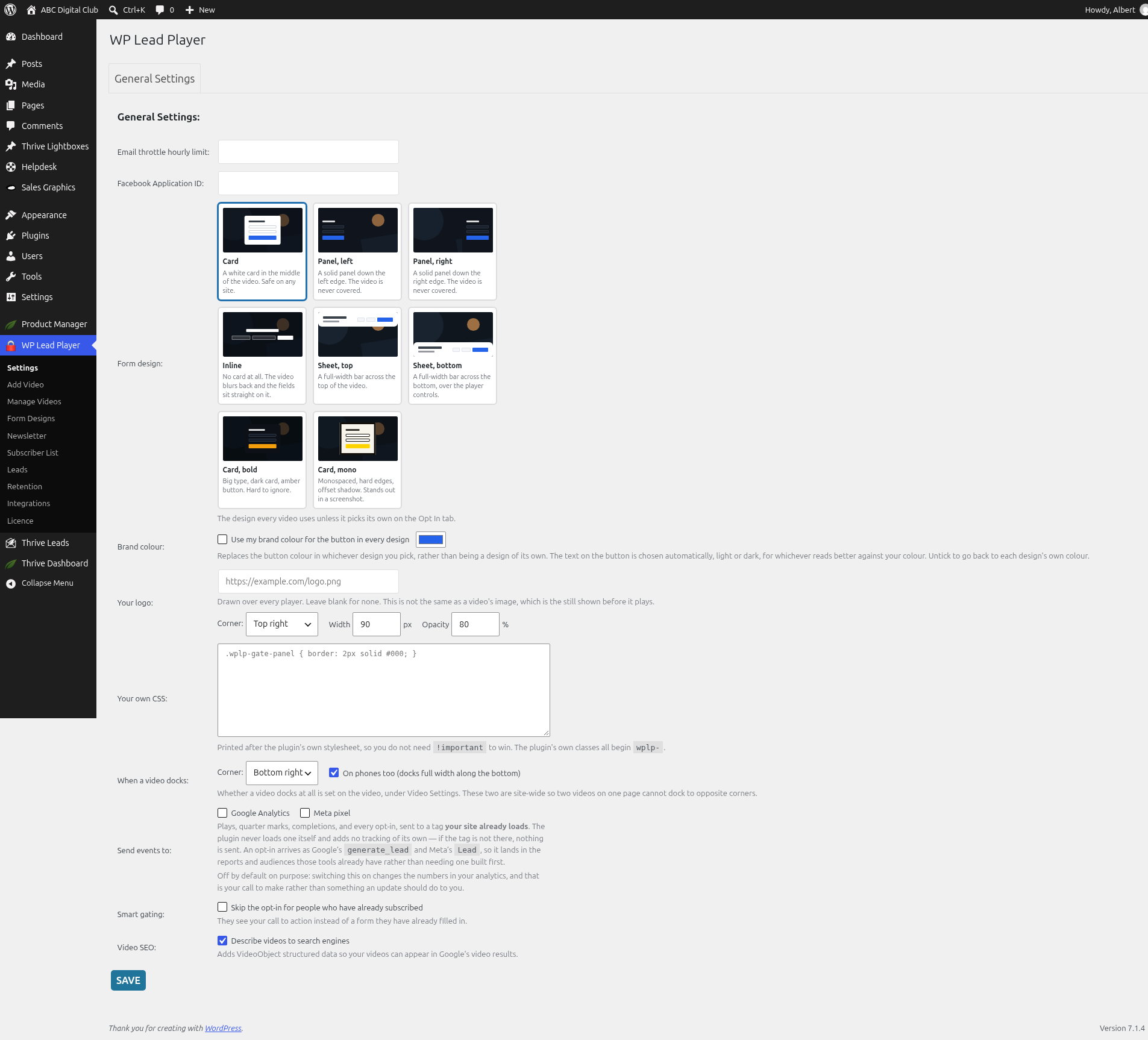
Your logo is set once for the whole site and drawn over every player. You don’t set it per video.
Add your logo
- Upload your logo to Media › Add New (a transparent PNG works best) and copy its file URL.
- Go to WP Lead Player › Settings.
- Paste the address into Your logo, for example
https://example.com/logo.png. - Choose the Corner: Top right, Top left, Bottom right or Bottom left. The default is Top right.
- Set the Width in px (for example 90) and the Opacity in % (for example 80).
- Click SAVE.
Remove your logo
Clear the Your logo box and click SAVE. Leave it blank for no logo.
Logo or thumbnail?
Your logo isn’t the same as a video’s startup thumbnail, which is the still shown before that video plays. The thumbnail is set per video on the Video Settings tab.
Still stuck? Open a ticket on the support page on ABC and a real person will help.
Was this article helpful?